

Type-C Female Connector Pin Interface Analysis
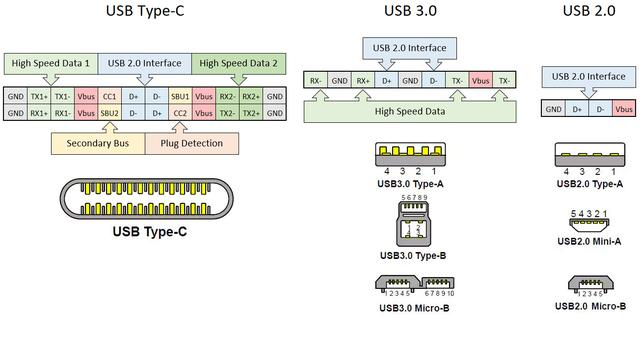
The Type-C female connector is commonly abbreviated as "type c" or "type-c," referring to the same product. The USB 3.0 interface of a Type-C female connector typically has between 9 and 11 pins, while USB 2.0 uses only 4 pins. Despite the increased number of pins, the overall size of the Type-C interface has not become larger; in fact, it is smaller compared to standard connectors, meeting the requirements of mobile devices. Additionally, the Type-C female connector features a total of 24 pins, enabling reversible insertion and high-speed data transfer. With no directional orientation, users can avoid incorrect or accidental insertion during use.
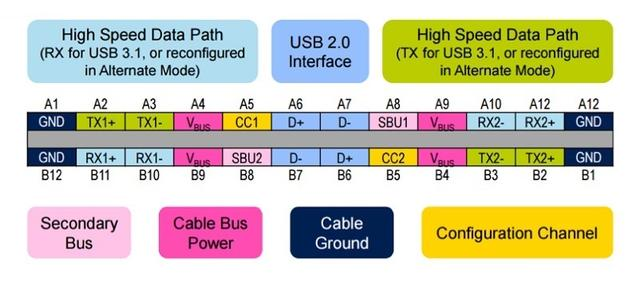
Type-C Pin Definition
1. If only USB 2.0 is used, simply connect A6 to B6 for D+ and A7 to B7 for D-. The remaining data pins can be left floating.
2. For USB 3.1, two sets of TX+/− and RX+/− must be connected to support high-speed data transmission.
3. Power-related pins are A4, A9; B4, B9—these correspond to the power lines on the USB cable. The outermost four pins at each end serve as ground for power.
4. Note the configuration pins: A5 and B5, known as CC1 and CC2, which are used for connection detection, configuration, and management. Plugs have only one CC pin, while receptacles have two: CC1 and CC2.
Main Applications of USB Type-C Female Connectors
USB Type-C female connectors, when combined with Type-A interfaces, have four primary applications. Overall, they are most widely used in electronic products from major brands such as smartphones, monitors, and computers. LG is said to have been the first company to adopt Type-C female connectors, while Apple has recently been aggressively expanding its use. Therefore, their application scope is undoubtedly broad.
Application 1: Connecting devices with USB 2.0 B-type ports to computers equipped with USB Type-C interfaces, such as B-type webcams, B-type printers, and Apple computers.
Application 2: Enabling USB Type-C devices to charge using existing USB chargers or connect to computer USB ports for data transfer.
Application 3: Connecting USB 2.0 Type-B devices to USB Type-C interfaces for both data transfer and charging—for example, connecting a Canon camera to a new MacBook to achieve synchronized data transmission.
Application 4: Connecting external hard drives, keyboards, mice, USB flash drives, and new MacBooks via USB Type-C interfaces.